- 06 Oct 2026
- 🕹 Retro Gaming
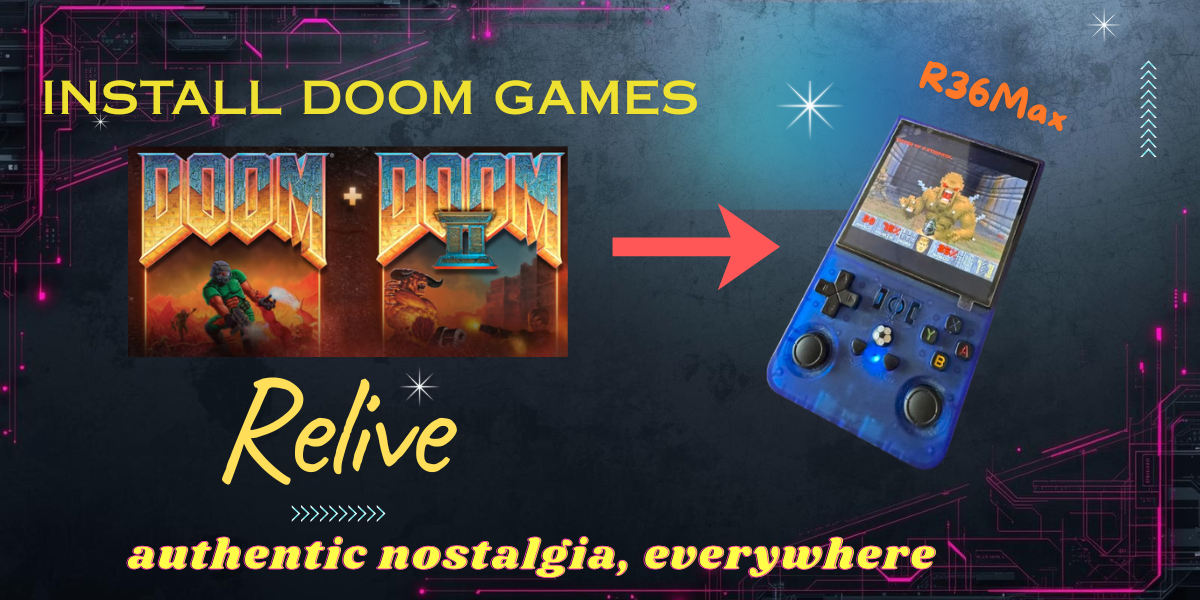
In one of my previous articles I showed you how to install both DOOM1 + DOOM2 games on your retro game console (R36Max in my case). DOOM1 was working flawless, but somehow DOOM2 audio did not work.
Simple fix for the audio problem
Initially, I found one solution which involved removing the SD card and modifying some file. But there's no need to go this far. Actually, as shown in the video you just need to go into the DOOM games folder and run the START option instead of the game directly. One launcher with multiple options appears. You need to select Option 2 to start DOOM2.
Hehe now the fun part
How can you select number 2 if you have no keyboard? Definitely the launcher was built for PC. So there are 2 options here:
- Insert a keyboard into the OTG port. Make sure you use an TypeC adapter. Then press 2 on the keyboard itself. You should also be able to play with the keyboard directly
- You have 2 joysticks on the console. Middle press the left one and you'll open a menu. This menu comes from DosBox and can be navigated with the index buttons R1 and L1. If you press R1 as demonstrated in the video, you'll see an on-screen keyboard and a cursor. Just move the cursor above the number 2 and hit A to press!
Game now starts
Now the game should start. Actually this START launcher creates a .cfg file under the hood which allows the game to properly load audio and keys configuration so that you can enjoy playing this retro classic!
Don't forget to reach out if you have issues!